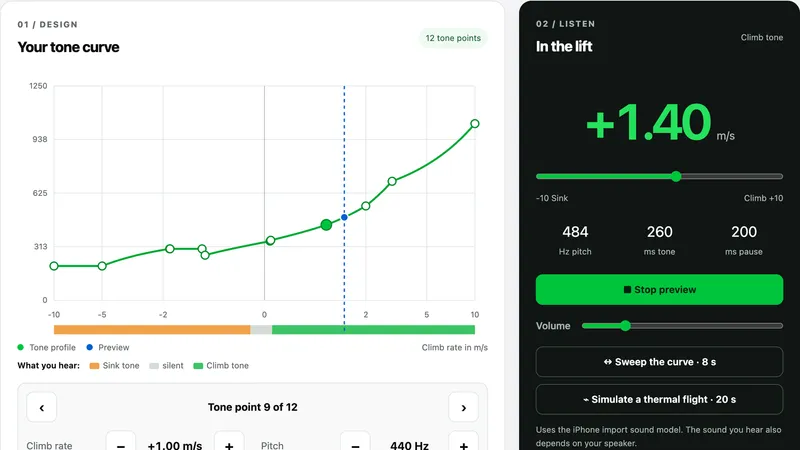
New: Sound Studio – design your vario tone in the browser
The sound of your thermals
Every pilot hears lift a little differently. Some like an early, quiet beep, others only want a clear tone once it really climbs. With the new Sound Studio you design your vario tone exactly the way you want to hear it in flight – right in the browser, nothing to install.
Design your tone curve. Hear it instantly. Take it into Vario One.
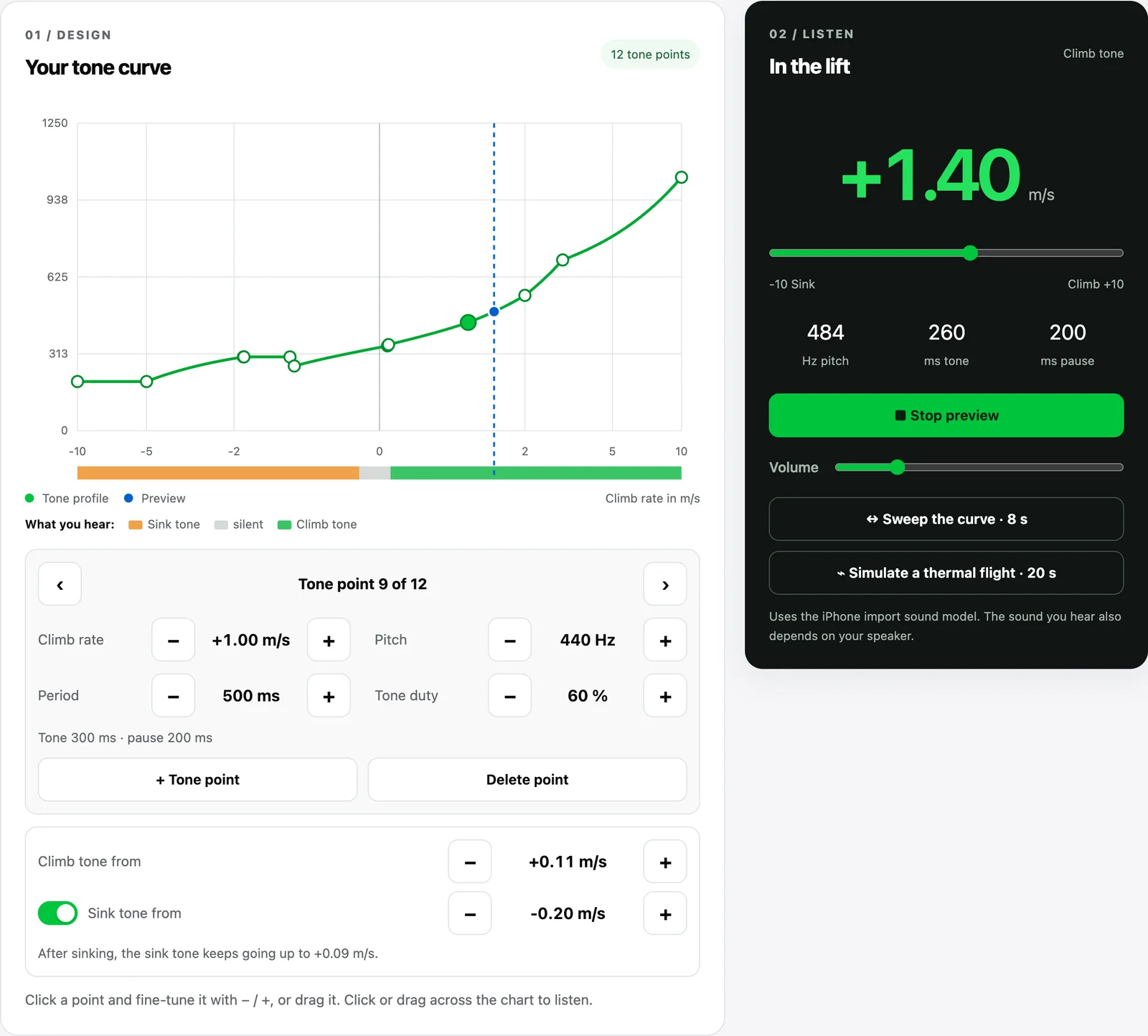
Design: your tone curve
Start with the XC-Style template and adjust it:
- Drag points: each point on the curve defines how your vario sounds at a given climb rate.
- Fine-tune: tap a point and use − / + to set pitch, period and tone duty – how high, how fast and how long each beep is.
- Add or delete points until the curve feels right.
- Climb tone from / Sink tone from: set the climb rate at which your vario starts beeping, and whether and from when a sink tone plays. The “What you hear” strip below the chart shows at a glance where sink tone, silence and climb tone are.
Listen: hear what you build, instantly
No need to fly to test your tone:
- Click into the curve or move the slider – you instantly hear the tone at that climb rate.
- Sweep the curve: hear the whole curve from −10 to +10 m/s in 8 seconds.
- Simulate a thermal flight: 20 seconds of thermal flying with entry, core and exit – this is how your tone sounds in practice.
Take it with you: transfer to Vario One
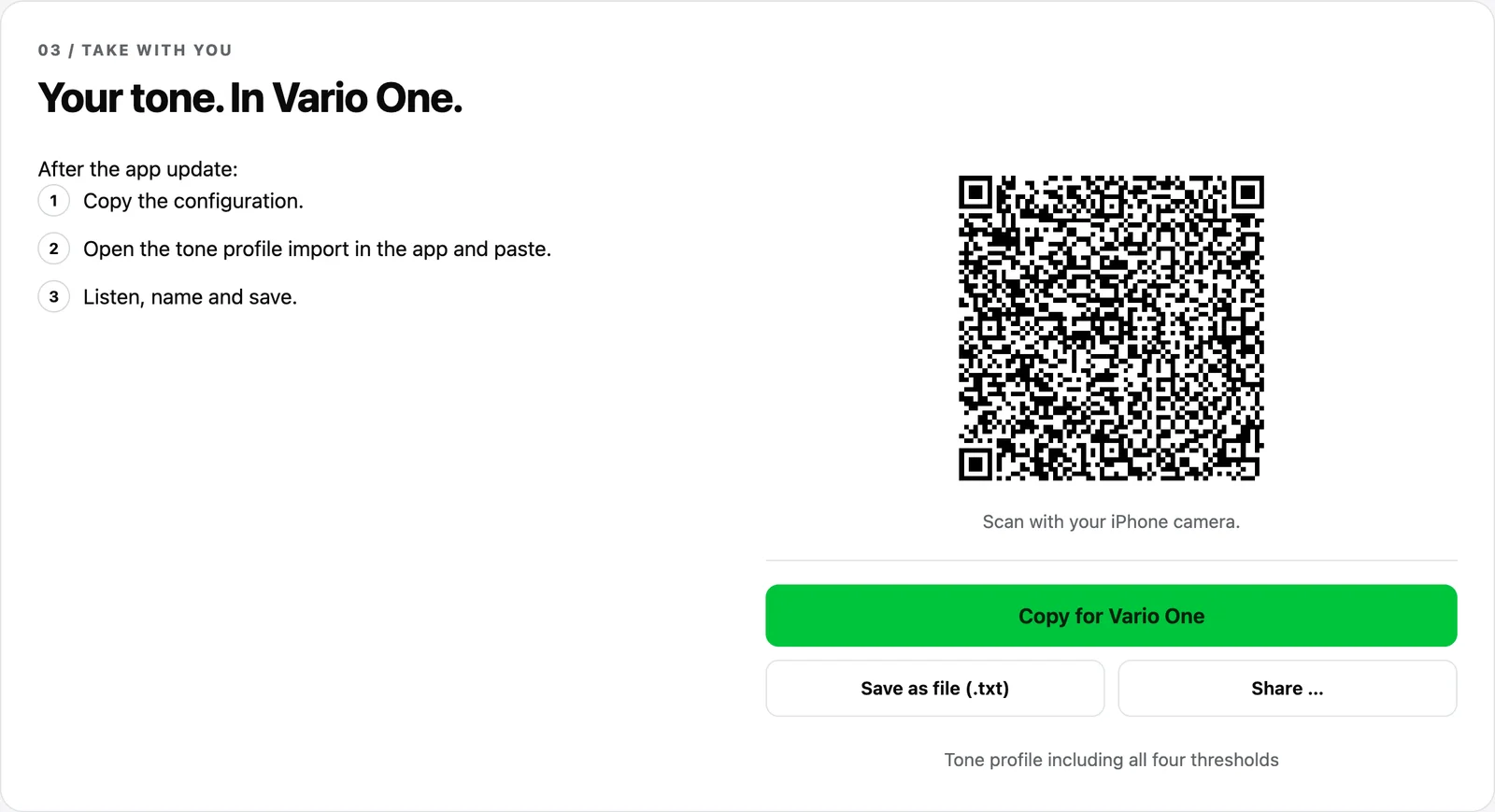
Once your tone is ready, bring it into the app:
- Scan the QR code: on your computer, scan the QR code with your phone camera – the tone profile opens directly in Vario One.
- Or copy it: tap “Copy for Vario One”, open the tone profile import in the app and paste.
- Listen, name it, save it – done.
You can also save your profile as a file or share it. Your tone files stay in your browser and are not uploaded.
Available on Android now, iPhone to follow
On Android you can import your tone profiles right away: simply update Vario One via Google Play.
The iPhone update with tone profile import is still in Apple’s App Review and will follow shortly.
XC Tracer: import and export
Flying with an XC Tracer? The Sound Studio understands its configuration files too:
- Import: open your XC Tracer’s configuration file via “Open file” or simply drag it onto the page. Tone curve and tone thresholds are loaded, and you can listen to and edit them right away.
- Export: under “More options → XC Tracer export”, choose your device’s original file and download a new file with your tone. Only the tone curve and tone thresholds are replaced – all other device settings stay unchanged.
For the export, the curve needs 12 tone points from −10 to +10 m/s, just like the original. Before uploading, back up your original file, copy the download to the device, safely eject it and restart it in flight mode.
Vario One is not affiliated with XC Tracer.
Open the Sound Studio now and hear your thermals.